Users Page
Users Page
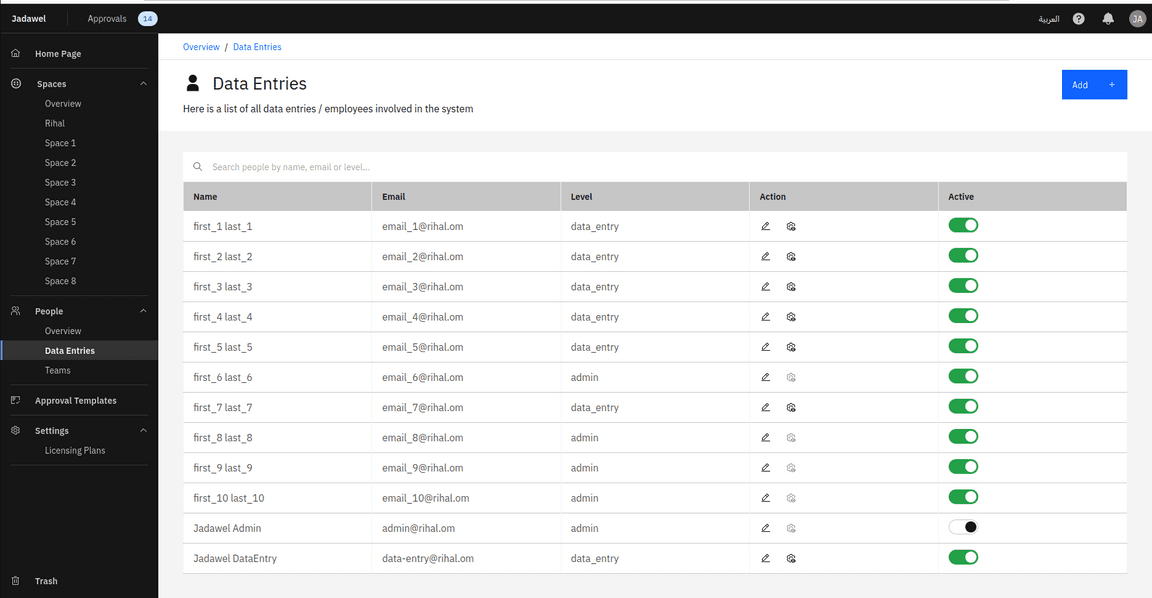
The Users page in Jadawel displays a list of all the users currently registered in the system. From this page, you can perform several actions including adding a new user, editing user details and permissions, and deactivating a user. You can also view which teams a user belongs to and change their team membership.
Add a New User:
- To add a new user, click on the “Add New User” button.
- Fill in the required details for the user, email address, and role (admin or data-entry).
- Once you have filled in the required details, click on the “Save” button to add the new user.
- An invitation email will be sent to the user with instructions on how to update user profile and to access the application.
Edit User Role and Permissions:
- To edit an existing user’s role, click on the “Edit” option in the dropdown menu next to the user’s name.
- This will direct you to the user details page, where you can view and modify the user’s role and permissions.
- To edit the user’s details, click on the “Edit” icon located in the top right corner of the page.
- Navigate to the “Spaces”, “Tables”, “Columns”, and “Teams” tabs to review the user’s permissions. Edit these permissions by checking or unchecking the appropriate boxes. You can also assign a user as a space owner from the Spaces tab.
Remove a User:
- To remove and deactivate a user, select the “Remove” option from the dropdown menu next to the user’s name..
- A pop-up window will appear, asking you to confirm that you want to remove the user. Click “Remove” to confirm, or “Cancel” to abort the action.
- The user’s status will be inactive, and they will no longer be able to access the app.
Re-adding a User:
- If you need to re-add a previously removed user, click on the “Add User” button.
- Enter the user’s email address and any required details to re-establish their account
- Once added, the user will receive an email prompting them to update their account information and set a new password, allowing them to regain access to the application.
Single Sign-On (SSO) Instructions:
- Users do not need to be invited to access the app. They can log in using the Single Sign-On (SSO) feature.
- On the login page, select the “Login with SSO” option.
- The user will be prompted to enter their corporate credentials associated with the SSO provider.
- Upon successful authentication, the user will gain immediate access to the app without needing a separate invitation or account setup.
That’s a brief overview of the Users page in Jadawel. From this page, you can manage all the users in the system, view their permissions, and edit their details as needed. You can also add or remove users from teams or deactivate them entirely if necessary.